For most people, an SSD is the better choice for the drive that runs your computer, because it makes startup, loading, and everyday tasks feel much faster. An HDD is still the better value for storing large amounts of data, such as backups, media libraries, and archives. If your budget allows, the best setup is often both: an SSD for your system and apps, and an HDD for bulk storage.
That advice matters more in 2026, because SSD prices have risen sharply during a NAND flash shortage. On one retail price tracker from August 2026, the cheapest NVMe storage cost about $105 per TB, compared with about $28 per TB for a high-capacity hard drive.
SSD vs HDD at a glance
Factor | SSD | HDD |
|---|---|---|
How it stores data | Flash memory chips | Spinning magnetic platters |
Moving parts | None | Yes |
Speed | Much faster, especially for small files | Slower, especially for random access |
Noise | Silent | Audible when working |
Shock resistance | Better | More sensitive to knocks while running |
Cost per TB | Higher | Lower |
Best for | Operating system, apps, games, active work | Backups, media, archives |
How each drive works
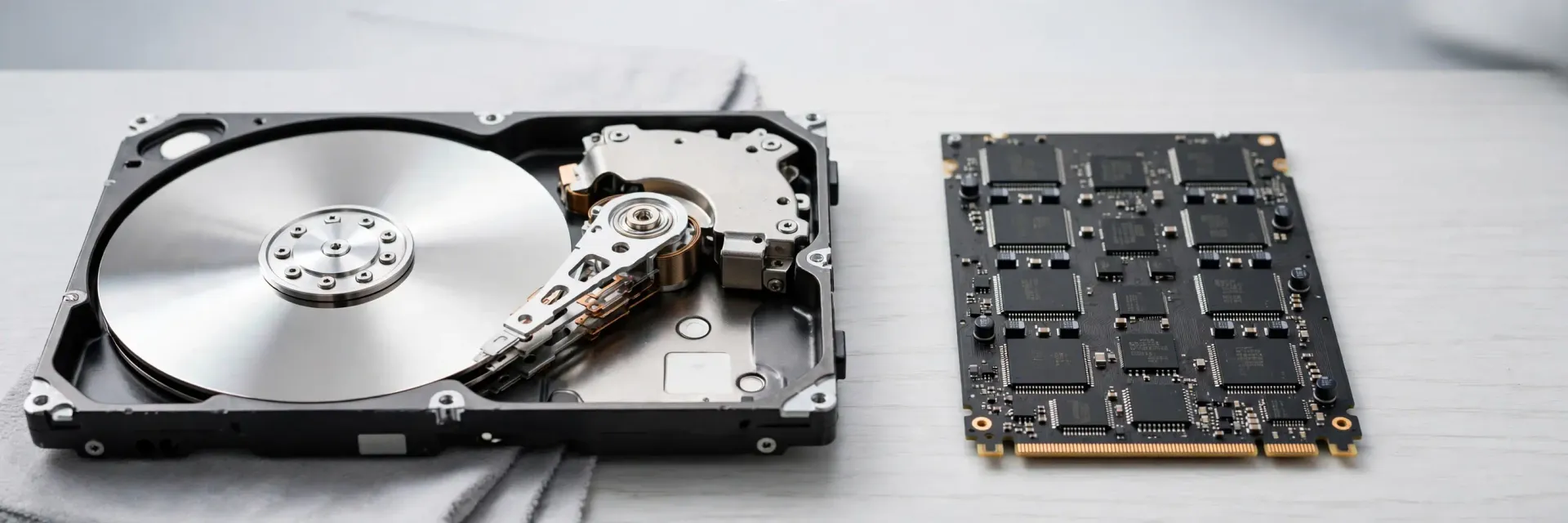
An HDD (hard disk drive) stores data on spinning magnetic platters. A small arm has to move into position over the right spot before it can read or write, and that physical movement is why HDDs are slower.
An SSD (solid-state drive) stores data in flash memory chips and has no moving parts. It can reach data almost immediately, wherever it's stored.
SSDs also come in different types:
SATA SSD: usually a 2.5-inch drive that connects through the same interface as many hard drives.
NVMe SSD: usually a small M.2 drive that connects through the faster PCIe interface.
Check which connections your computer supports before you buy.
Performance
These are approximate sequential read speeds, based on figures compiled by Cloudspress and Tech Insider. Real results vary by model and workload.
Drive type | Approximate read speed |
|---|---|
7,200 RPM HDD | 150-250 MB/s |
SATA SSD | Up to about 560 MB/s |
PCIe 4.0 NVMe SSD | Up to about 7,500 MB/s |
PCIe 5.0 NVMe SSD | Up to about 14,900 MB/s |
Those headline numbers don't tell the whole story. Everyday tasks often involve many small files, and this is where the lack of moving parts helps most. That's why moving from an HDD to even a basic SATA SSD usually feels like a bigger change than moving from one fast SSD to another.
Reliability and lifespan
SSDs have no moving parts, but they aren't immune to failure. In Backblaze's data on its boot drives, SSDs had a 1.05% annualized failure rate against 1.38% for hard drives once drive age was taken into account. That's a small gap from server use in 2021, so it may not apply to your computer.
Each type wears out in different ways:
HDDs can suffer mechanical failure, and they're more vulnerable to being knocked while running.
SSDs have a limit on how much data can be written. This is often shown as TBW (terabytes written). The figure is a warranty limit rather than a fixed end date, and most home users are unlikely to reach it quickly.
SSDs can also be a poor choice for long-term storage without power. Reported JEDEC figures set a minimum of one year of retention at 30°C for a consumer SSD at the end of its rated life. A newer drive may last longer, but don't leave your only copy of important files on an SSD in a drawer.
Cost
HDDs remain far cheaper for large amounts of storage. SSD pricing has also become less predictable, and Kioxia has predicted that the shortage will likely extend into 2027. Compare current prices per TB when you're ready to buy, as the best-value size can change.
Which should you choose?
Your use | Best choice | Why |
|---|---|---|
Laptop | SSD | Faster, quieter, and better suited to being moved |
Everyday home or office PC | SATA or PCIe 4.0 NVMe SSD | Quick startup and apps at a sensible price |
Gaming | NVMe SSD, plus an HDD if needed | Faster loading, with cheaper space for extra files |
Video or photo editing | NVMe SSD for active projects, HDD for archives | Fast work drive and affordable storage |
Home backups | HDD | Low cost per TB |
Media library or home server | HDD | Lots of space at a lower price |
Upgrading an old computer | SATA SSD, if that's what it supports | Often the most noticeable upgrade |
You probably don't need a top-end PCIe 5.0 drive for everyday work. Those speeds matter most for heavy workloads that move very large files, so a good PCIe 4.0 drive will be plenty for most people.
Always keep a backup
Any drive can fail without warning, whichever type you choose. A widely recommended approach is the 3-2-1 backup rule:
Keep 3 copies of your data.
Use 2 different types of storage.
Keep 1 copy offsite, such as in the cloud.
For a simple home setup, you could keep your files on your computer's SSD, back them up to an external HDD, and add a cloud backup. Test your backups now and then to make sure you can restore your files.

The bottom line
Buy an SSD for speed and an HDD for space. If you can only have one drive in your computer, choose an SSD with enough capacity for your apps and active files, then use an external HDD or cloud service for everything else.
Sources
Capital and Compute. Why SSDs Are So Expensive in 2026. August 2026.
Cloudspress. Storage Drive Speed Comparison.
Digital Citizen. The Endurance Number on an SSD Is a Warranty Limit, Not a Death Date.
NinjaOne. The 3-2-1 Backup Rule Explained.
Tech Insider. NVMe vs SATA SSD 2026.
Tech2Geek. How Long Can an Unpowered SSD Keep Your Data?.
Tom's Hardware. Backblaze Data Shows SSDs Failing Almost as Often as Hard Drives.
Tom's Hardware. SSDs now cost 16x more than HDDs.